How to set up earned screen time on your iPhone
Vishwen Labs
Setting up earned screen time takes about ten minutes: grant the app Screen Time access, pick the two or three apps that actually cost you evenings, choose a daily goal you can meet on an ordinary day, leave the rates at their defaults for the first week, do one workout to see the counter work, and let the shield do the rest. The steps below are BurnToScroll's, and the reasoning after them is what makes the system hold past the first fortnight.
Setting up earned screen time with BurnToScroll
- Install and grant Screen Time access. Download BurnToScroll on an iPhone with iOS 16 or later. When it asks for Screen Time access, allow it; iOS confirms with Face ID or your passcode because the authorisation is for you as an individual. Without it the app cannot lock anything.
- Pick what to lock. Tap Apps unlocked on the home screen to open Apple's picker and choose apps, whole categories or websites. Start with the two or three that take your evenings. One selection is free; any number with Premium. The app receives opaque tokens, never the names.
- Choose a daily goal you will meet. Light, Balanced or Generous is 30, 60 or 120 earned minutes a day; Balanced is the default. Pick the one you can meet on a tired Tuesday, not your best Saturday, and change it later in Settings.
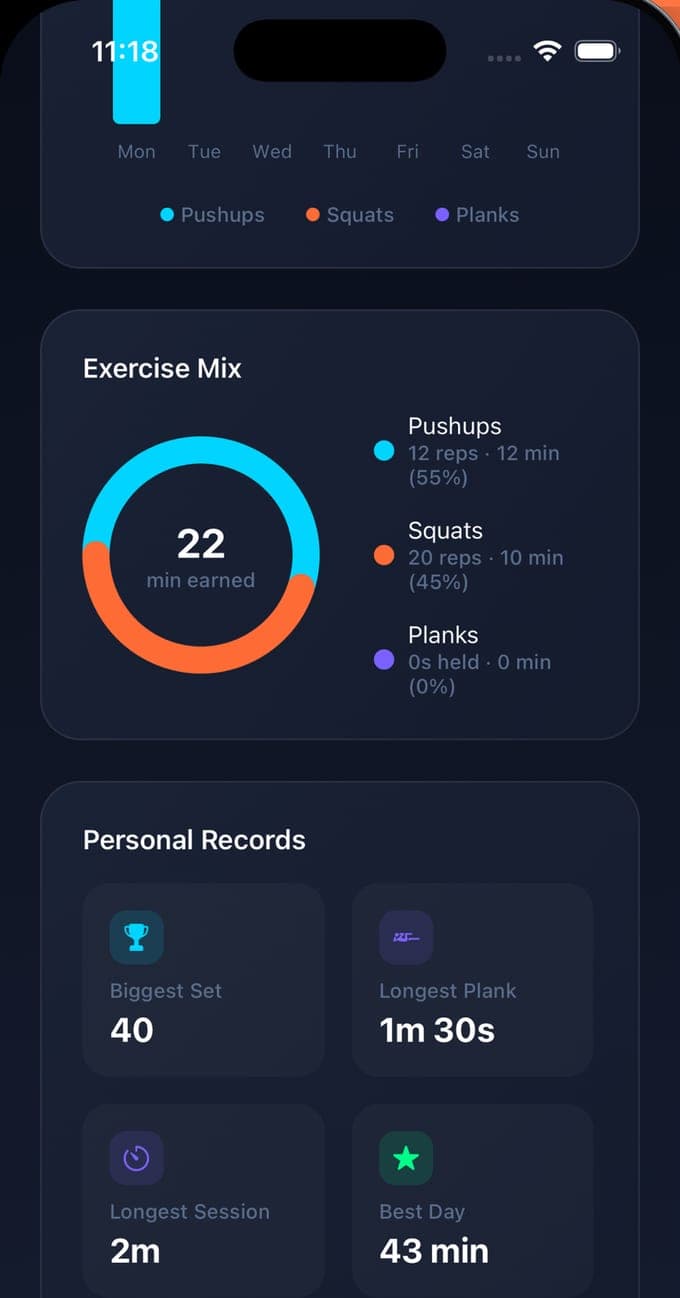
- Leave the rates alone for a week. A pushup is 1.5 minutes, a squat 45 seconds and 30 seconds of plank 3 minutes. Live with those for a week before touching them; Premium lets you edit each one down to a tenth of a minute once you know your numbers.
- Do the first workout. Allow the camera, prop the phone at floor level a couple of metres away facing you, and do a set of squats, the easiest to count. Watch the rep counter and the earned minutes climb; a haptic tap marks each rep.
- Let the shield work. Open a locked app with a zero balance and look at the shield: a greeting, your streak, and an Earn 5 minutes button that opens a workout. A warning arrives at five minutes left. At midnight the balance resets.
- Set the reminders and keep the streak. In Settings, set the daily reminder to a time you can act on; it defaults to 9 in the morning, the streak warning comes at 6 in the evening and a weekly summary on the weekend evening. The streak counts every day you meet the goal, and each streak day adds 10 percent to the XP of the next set.
Why two or three apps, not all of them
The instinct is to lock everything, and a week later the phone is unusable for maps and the app is deleted. Lock the apps you open without deciding to, which for most people is two or three, and leave the ones you use on purpose alone. The picker takes categories as well, so Social as a category catches the app you install next week. Expand the list later if the habit moves; it usually does, from Instagram to YouTube to the news, and the picker is a tap away.
Why the goal is a floor, not a ceiling
The daily goal is the number of earned minutes that counts as a complete day. It does not cap what you can earn, so a big set on a good day can go past it and the result screen says you earned more than the target. What the goal controls is the streak and the home screen's sense of done, and a goal you meet most days builds a streak that a goal you meet twice a week never will. Thirty minutes a day is a real leash; sixty is the default because most people's evenings are about that; a hundred and twenty is for someone who scrolls for hours and wants to keep some of them.
The first week, honestly
Expect the shield to be irritating and to catch you reaching for the phone more often than you thought. Expect the first workouts to feel like a tax. Around day four the pattern flips for most people: the reach starts to pause at the shield, a set of twenty squats takes ninety seconds, and the feed is opened for a reason and closed when the balance runs low. If the first week is instead a fight, the price is wrong: lower the goal, raise a rate with Premium, or pay with squats instead of pushups. The system has to be one you keep.
The escape hatches, and when to use them
Two exist and neither is on the lock screen. Premium's Pause until midnight in Settings lifts the shield for the rest of the day, for the day a locked app is needed for work or a friend. The other is the permission itself: in the iPhone's Settings under Screen Time, the app's access can be turned off, which drops the shield and prompts the app to ask again. Use the pause for real days and the permission for leaving; using either to skip a set is the old habit wearing a new coat, and the streak will tell you.
Questions people also ask
Can I use BurnToScroll without giving it Screen Time access?
You can count reps and keep stats, but nothing locks; the whole point is the shield, and the shield needs the permission. Grant it at setup, and remember it stays yours to revoke in the iPhone's Settings.
What if I share the phone or need a locked app for work?
Do not lock the apps you need for work; the picker lets you choose exactly which. For the odd day, Premium's Pause until midnight lifts the shield until the reset. A shared phone is a poor fit, since the authorisation and the balance belong to whoever holds it.