How to block apps on an iPhone so that Ignore Limit is not an option
Vishwen Labs
To block an app on an iPhone in a way you cannot wave through, either set a Screen Time passcode and turn on Block at End of Limit for each app limit, or use an app built on Apple's Family Controls framework, which applies a system shield that has no Ignore button and lifts only on the app's own terms. Screen Time's built-in limits are a reminder with a fifteen-minute snooze; when the limit ends, the screen offers Ignore Limit, and one tap is all it takes. The passcode route removes the button but leaves you holding the passcode. The Family Controls route puts the condition for unlocking somewhere else: a timer, a task, or in BurnToScroll's case a set of pushups.
What Screen Time's app limits actually do
Settings, Screen Time, App Limits lets you cap an app or a category at a number of minutes a day. When the minutes run out the app dims and a screen says the limit is reached, with a button to ask for fifteen more minutes or to ignore the limit for the day. That button is the design: Apple treats the limit as advice. Two settings change its weight. A Screen Time passcode, set under Lock Screen Time Settings, means Ignore Limit asks for the code. Block at End of Limit, a switch on each limit that only appears once a passcode exists, removes the Ignore option and makes the app unusable until the limit resets or the passcode is entered. It is the strongest thing the built-in tool offers.
Why the passcode is not enough for most people
Because you know it. A limit protected by a code you set yourself is a lock with the key in it, and at eleven at night the four digits are no obstacle at all. Some people hand the code to a partner, which works until it is needed for something else, and some set a random code they cannot remember, which works until an iOS update needs it. The honest summary is that Screen Time's limits are good at showing you the number and poor at holding the line, and the many articles on how to fix limits that stop working, or how to get the Ignore button to disappear, exist because the tool was built to be overridable.
What a Family Controls app does differently
Since iOS 15 Apple has let third-party apps use the same machinery through the Family Controls, Managed Settings and Device Activity frameworks. You authorise the app for Screen Time access, choose apps, categories or websites in Apple's own picker, and the app applies a shield, a full-screen system block that replaces the app's window. The shield has whatever buttons the blocking app gives it and no Ignore Limit. The blocking app also cannot see what you picked: Apple describes the picker as a view where users specify apps “without revealing their choices to the app”, and hands over opaque tokens. The Family Controls guide goes through what the framework can and cannot do.
Earned minutes instead of a timer
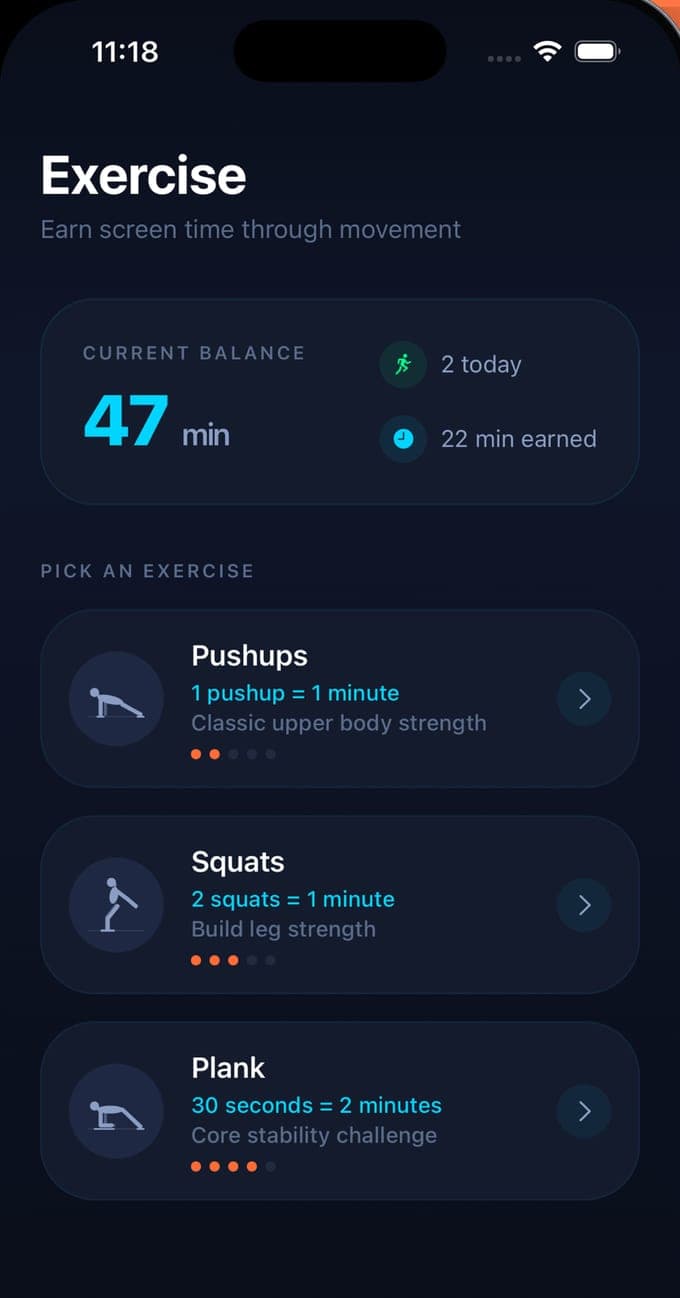
Most Family Controls apps unlock on a schedule, a focus session or a waiting screen. BurnToScroll unlocks on a balance. The apps you chose are shielded while the balance is zero, each pushup, squat or plank second the camera counts adds minutes, a monitoring extension counts the minutes you spend in the apps, and the shield comes back when the balance runs out. The shield itself shows a greeting for the time of day, your streak, and an Earn 5 minutes button that opens a workout, so the way out of the lock is the exercise, not a code. At midnight the balance resets.
Setting it up, and the escape hatches
Install the app, grant Screen Time access when iOS asks and confirm with Face ID, then pick what to lock; one app on the free tier, any number with Premium. Websites are added by domain and apply in Safari. Two ways out remain, and they should. Premium has a Pause until midnight for the day a locked app is genuinely needed. And the permission is always yours: Settings, Screen Time, and the app's access can be turned off, which drops the shield and prompts the app to ask for it back. Neither is a button on the lock screen, which is the difference from Ignore Limit.
Questions people also ask
Can an app block the iPhone's built-in apps such as Safari or Messages?
Safari can be shielded like any app, and websites can be blocked by domain. Apple's picker offers most apps on the phone; a few system functions such as the Phone app stay reachable by design. The picker shows you exactly what can be chosen.
Does Block at End of Limit stop Ignore Limit completely?
It removes the Ignore Limit button and asks for the Screen Time passcode instead, so the limit holds against anyone who does not know the code. If you set the code yourself it holds against you only as far as your patience with typing four digits.