How to make an invoice on iPhone
Vishwen Labs

To make an invoice on an iPhone, you need five things on one page: your business details, the client's details, a line for each item of work, the total with any sales tax, and a due date. Apple's Numbers app holds all of that. So does a dedicated invoicing app. The difference shows up on the second invoice, in how much you retype.
Make an invoice on an iPhone
- Start the invoice and pick the client. Open a new invoice and choose the client from your client list. If they are new, save their name, email and phone once so the billing block fills itself on every invoice after this one.
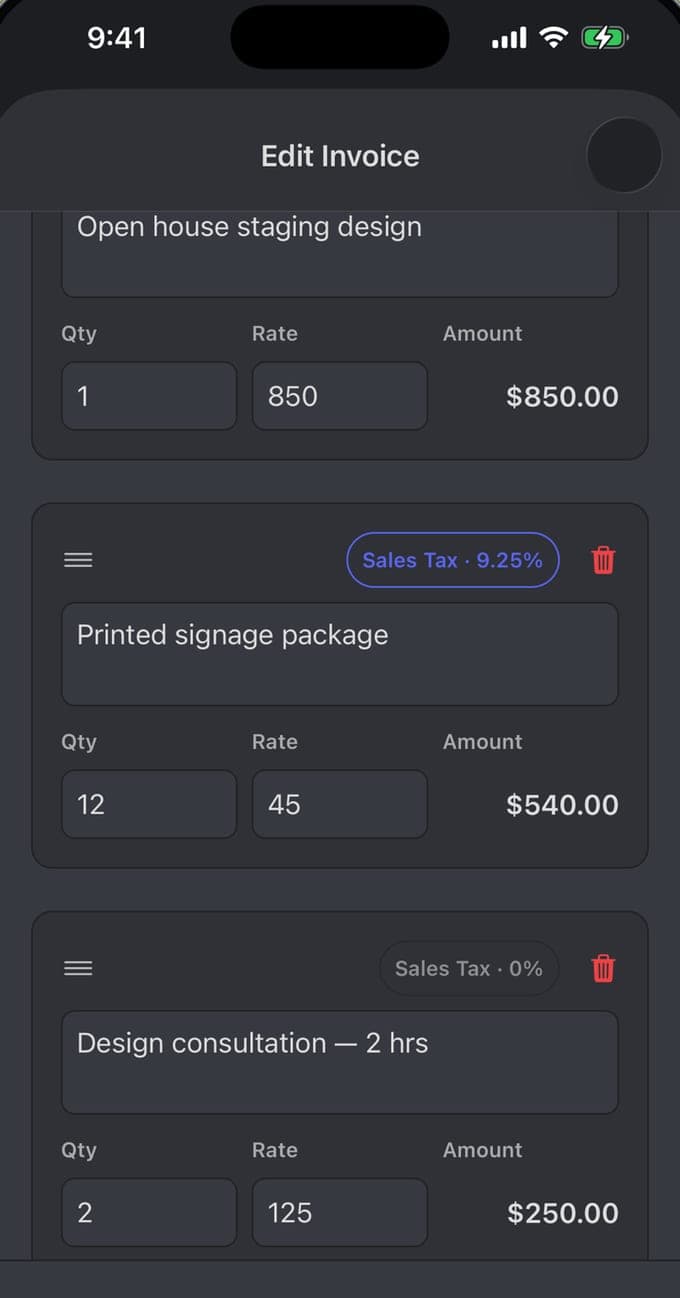
- Enter the line items. In the line-item editor, type a description, a quantity and a rate for each item of work. The amount for the row is calculated for you. Drag rows into the order you want and swipe away anything you do not need.
- Set the sales tax. Turn on Sales Tax and apply the default rate, or set a rate on individual lines where they differ. Check the per-rate breakdown against the subtotal before you go further.
- Check the totals and any discount. Read the subtotal, the tax lines and the total together. Apply a discount here if you agreed one, and confirm the final figure is what you quoted.
- Write the notes, terms and due date. Put anything the client needs in the Notes field and your payment terms in the Terms field, worded as a period rather than a bare date. Set the due date and the invoice date.
- Preview, then share the PDF. Tap Preview Invoice to render the document, check the header, Bill To block, totals and payment details, then share the PDF from the iOS share sheet into email, a messaging app or a cloud folder.
What to have ready before you make an invoice on your iPhone
Gather the information once and the rest of the job is typing. An invoice that a client's accounts team pays without ringing you back carries:
What is legally required varies by country, and in the US by state, so check your own tax authority's wording before the first invoice of the year. Nothing on this page is tax advice.
- Your business name, address, email and phone, plus a Tax ID if you hold one.
- The client's name and billing address, under a clear Bill To heading.
- A unique invoice number and an invoice date.
- One line per item: description, quantity, rate, and the amount those two produce.
- Subtotal, sales tax broken out by rate, and the total due.
- A due date, and how to pay you: bank name, account holder, account number or IBAN, and the routing, SWIFT or sort code your bank uses.
Making an invoice on iPhone with Apple Numbers
Numbers ships on the iPhone and keeps an invoice template under Business. Open the app, tap the plus at the top right, pick the template and overwrite the placeholder rows. The three-dot menu exports a PDF, which you share from the iOS share sheet. For one invoice a quarter, that is the sensible answer and it costs nothing.
The cost arrives later. A spreadsheet remembers no clients, so the billing address gets typed again every time. Invoice numbers are yours to track by hand, which is how two jobs both end up as 014. Tax is a formula you wrote, so a client billed at a different rate means editing the formula. At four invoices a year, none of this matters. At four a month it is an evening.
How to create an invoice on iPhone in an invoicing app
An invoicing app trades template freedom for memory. Invoice Pro keeps a record per client with email, phone, invoice count and lifetime total, so the second invoice to the same client opens with the Bill To block already filled. A new invoice starts in the line-item editor: a description, Qty and Rate on each row, with the Amount computed as you type. Rows drag into order and delete on a swipe.
Add from Library brings back work you have billed before, which takes care of the other half of the retyping. The app runs with no internet connection, so a line entered in someone's basement is saved exactly as one entered at a desk.
Adding sales tax and totals to an iPhone invoice
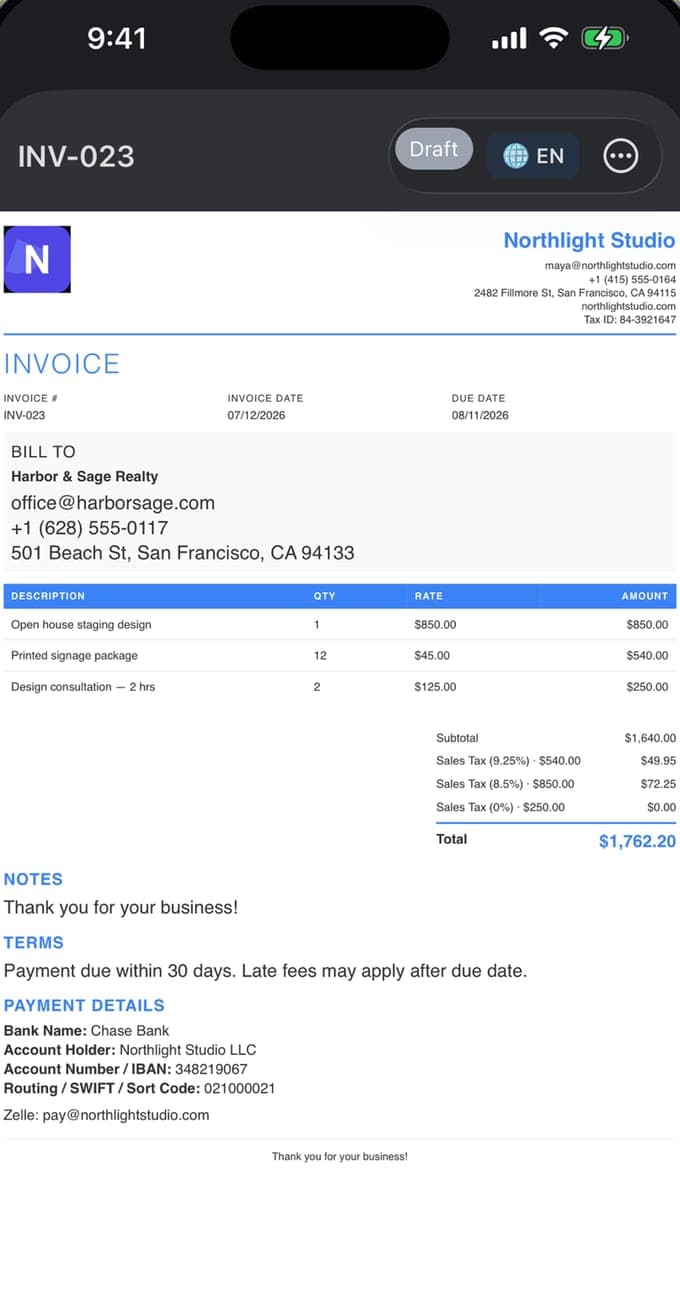
Below the items sits the arithmetic. There is a subtotal, then a Sales Tax toggle with a default rate you set once, and rates you can put on individual lines when one job mixes taxable goods with untaxed labour. A worked example from the editor: a subtotal of $1,640.00 splits into 9.25% on $540.00, 8.5% on $850.00 and 0% on $250.00, giving $122.20 of tax and a total of $1,762.20.
A Discount toggle sits under the tax block. Notes and Terms are plain text fields, and Terms is where payment terms belong: "Payment due within 14 days of the invoice date" reads more clearly on the PDF than a due date sitting on its own. Which rate applies to which line is a local question, and your tax authority is the only reliable source for it.
Turning the invoice into a PDF on your iPhone
What the client sees is the rendered PDF. Preview Invoice draws it: logo, business name, email, phone, website and Tax ID across the header, then the invoice number, the invoice date and the due date, the BILL TO block, the line table, the subtotal with one line per tax rate, and the total. Notes, Terms and Payment Details follow, the last carrying bank name, account holder, account number or IBAN, the routing, SWIFT or sort code, and a Zelle address.
There are 37 templates, and switching between them after the invoice is written changes the design only. Currency comes from a list of more than 150, and the document renders in 19 languages, so a client in Lisbon can read Portuguese while your own copy stays in English. From the preview you share the file through the iOS share sheet into Mail, Messages, WhatsApp or a cloud folder. The app makes the PDF and hands it over; sending it is still you.
After you send an invoice from your iPhone
Record what arrives against the invoice as it arrives. Each payment takes a date, a method such as Bank Transfer and an amount, the balance due stays current, and a receipt can be generated for what has been paid so far. An invoice showing $1,571.00 received against $2,907.80 leaves $1,336.80 outstanding, and $1,336.80 is the number to chase.
Records stay on the device, which is worth knowing before you put a list of client addresses on a phone. A paid subscription removes the PDF watermark and adds a signature you draw on screen, along with reminders tied to the due date. Keep the numbering in one unbroken sequence from the first invoice onward; it is the first thing anyone asks for at the end of the tax year.
Questions people also ask
Can I make an invoice on an iPhone without an internet connection?
Yes. Numbers works offline, and Invoice Pro builds the invoice, calculates the tax and renders the PDF with no connection at all, keeping the records on the device. You need a connection only at the moment you send the file, unless you hand it over by AirDrop.
Do I need Apple Numbers or Pages to make an invoice on an iPhone?
No. Numbers has a free invoice template under Business and it produces a perfectly valid invoice, but it is a spreadsheet, so client details, invoice numbers and tax formulas are yours to manage by hand. A dedicated invoicing app keeps all three for you. Both routes end in a PDF you share from the same iOS share sheet.